\n\n\n\n\n\n\n
 \n
\n
\n
\n
- Getting Started with GitHub Copilot
- Write Clear and Descriptive Comments
- Use Meaningful Function and Variable Names
- Break Down Complex Tasks
- Leverage Tab for Auto-completion
- Use Copilot Chat for Complex Problems
- Context is Everything
- Iterate on Generated Code
- Use Slash Commands
- Train Your Copilot Over Time
- Use for Boilerplate Code
- Generate Documentation Automatically
- Pair Programming with Copilot
- Security Best Practices
- Measure Your Productivity Gains
- Conclusion
\n
GitHub Copilot has revolutionized the way developers write code, and in 2024, it's more powerful than ever. This AI-powered pair programmer can significantly boost your productivity when used correctly. Here's how to maximize its potential.
📋 Table of Contents
- Getting Started with GitHub Copilot
- Write Clear and Descriptive Comments
- Use Meaningful Function and Variable Names
- Break Down Complex Tasks
- Leverage Tab for Auto-completion
- Use Copilot Chat for Complex Problems
- Context is Everything
- Iterate on Generated Code
- Use Slash Commands
- Train Your Copilot Over Time
- Use for Boilerplate Code
- Generate Documentation Automatically
- Pair Programming with Copilot
- Security Best Practices
- Measure Your Productivity Gains
- Conclusion
GitHub Copilot has revolutionized the way developers write code, and in 2024, it's more powerful than ever. This AI-powered pair programmer can significantly boost your productivity when used cor…
Getting Started with GitHub Copilot
First, ensure you have GitHub Copilot installed in your IDE. It's available for Visual Studio Code, JetBrains IDEs, Neovim, and Visual Studio. After installation, sign in with your GitHub account that has an active Copilot subscription.
Write Clear and Descriptive Comments

🎨 AI Generated: Write Clear and Descriptive Comments
GitHub Copilot works best when you provide context through comments. Instead of vague descriptions, write specific comments about what you want to achieve:
Poor: // function to sort
Better: // Sort an array of user objects by their registration date in descending order
The more detailed your comment, the more accurate Copilot's suggestions will be.
Use Meaningful Function and Variable Names
Copilot analyzes your code context, including variable and function names. Use descriptive names that clearly indicate purpose. For example, getUsersByRegistrationDate() is much better than getUsers() when you want date-specific functionality.
Break Down Complex Tasks

🎨 AI Generated: Break Down Complex Tasks
Instead of asking Copilot to generate an entire complex feature at once, break it into smaller, manageable functions. This approach yields more accurate code and makes it easier to review and debug. Write stub functions with clear names, and let Copilot fill in the implementations.
Leverage Tab for Auto-completion
When Copilot suggests code, press Tab to accept the suggestion. If you see multiple grayed-out lines, you can accept them all at once. Use Alt+] (or Option+] on Mac) to cycle through alternative suggestions before accepting.
Use Copilot Chat for Complex Problems
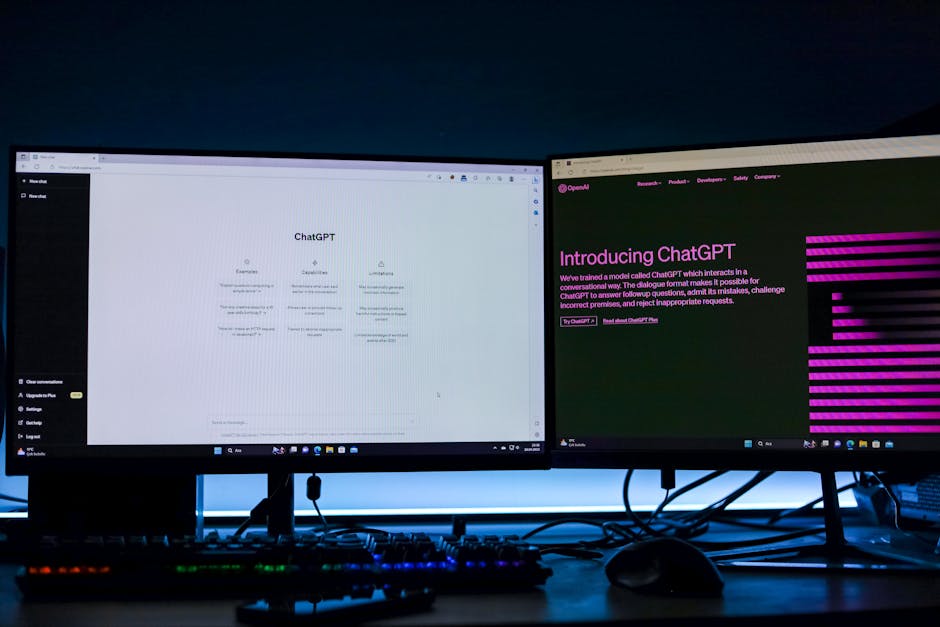
🎨 AI Generated: Use Copilot Chat for Complex Problems
In 2024, GitHub Copilot Chat has become an invaluable feature. Open the chat panel to ask questions, request explanations, or get help debugging. You can ask it to:
- Explain complex code sections
- Suggest optimizations
- Find and fix bugs
- Generate unit tests
- Refactor code for better readability
Context is Everything
Keep relevant files open in your editor. Copilot considers the context from all open files in your workspace, which helps it generate more relevant suggestions. If you're working on a React component, having related components open can improve suggestions.
Iterate on Generated Code

🎨 AI Generated: Iterate on Generated Code
Don't accept every suggestion blindly. Use Copilot's output as a starting point and refine it. Often, the first suggestion gets you 80% of the way there, and you can quickly adjust the remaining 20% to fit your exact needs.
Use Slash Commands
Copilot Chat supports slash commands that streamline common tasks:
/explain– Get explanations of selected code/fix– Propose fixes for problems in the code/tests– Generate unit tests/help– Get help with Copilot features
Train Your Copilot Over Time

🎨 AI Generated: Train Your Copilot Over Time
Copilot learns from your patterns. When you consistently reject certain types of suggestions and accept others, it adapts. Maintain consistent coding styles in your project, and Copilot will follow suit.
Use for Boilerplate Code
Copilot excels at generating repetitive boilerplate code. Use it for:
- API endpoint definitions
- CRUD operations
- Standard class constructors
- Common design patterns
- Configuration files
Generate Documentation Automatically

🎨 AI Generated: Generate Documentation Automatically
Type /** above a function, and Copilot will generate JSDoc or similar documentation based on your function signature. This saves significant time and ensures consistent documentation.
Pair Programming with Copilot
Think of Copilot as a junior developer pair programming with you. Review its suggestions critically, provide feedback through your edits, and use it to handle routine tasks while you focus on architecture and complex logic.
Security Best Practices

🎨 AI Generated: Security Best Practices
Always review generated code for security vulnerabilities. Don't commit API keys, credentials, or sensitive data that Copilot might inadvertently suggest. Use your organization's security scanning tools to validate AI-generated code.
Measure Your Productivity Gains
GitHub provides Copilot metrics showing acceptance rates and how much code it's generating. Review these metrics to understand where Copilot helps you most and where you might need to adjust your approach.
Conclusion

🎨 AI Generated: Conclusion
GitHub Copilot in 2024 is an incredibly powerful tool that can dramatically increase your coding speed. The key is learning to communicate effectively with it through clear comments, meaningful names, and proper context. Treat it as a collaborative tool rather than a replacement for your expertise, and you'll find yourself shipping code faster while maintaining high quality standards.
Remember, the goal isn't to let AI write all your code—it's to eliminate the tedious parts so you can focus on solving interesting problems and building great software.
\n
🚀 Stay Ahead of the Tech Curve
Get daily tech insights, honest reviews, and practical guides.
\n
\n
❓ Frequently Asked Questions
\n
What is GitHub Copilot and how does it help developers?
GitHub Copilot is an AI-powered code completion tool that suggests code snippets and entire functions as you type. It helps developers write code faster by reducing the time spent on routine coding tasks and providing intelligent suggestions based on context and best practices.
\n
Is GitHub Copilot suitable for beginners?
Yes, GitHub Copilot can be beneficial for beginners as it provides code suggestions and examples that help with learning. However, users should verify the generated code’s correctness and understand what the AI suggests rather than blindly copying it.
\n
What programming languages does GitHub Copilot support?
GitHub Copilot supports a wide range of programming languages including Python, JavaScript, TypeScript, Java, C++, C#, and many others. It works across most popular languages and frameworks used in modern development.
\n
How much does GitHub Copilot cost in 2024?
GitHub Copilot offers both individual and organizational subscription plans. Individual users typically pay a monthly or annual subscription fee, while organizations can purchase licenses for their teams at bulk rates. GitHub also offers free access to students through the GitHub Student Developer Pack.
\n
\n
📚 You might also like




🔗 Share this article
[…] TechHow to Use GitHub Copilot to Write Code Faster in 2024 […]
[…] TechHow to Use GitHub Copilot to Write Code Faster in 2024 […]