\n\n\n\n\n\n\n
 \n
\n
\n
\n
\n
In an era where online privacy is increasingly under threat, setting up a VPN (Virtual Private Network) at home has become essential for protecting your digital footprint. This comprehensive guide will walk you through everything you need to know about establishing a secure VPN connection at home.
📋 Table of Contents
In an era where online privacy is increasingly under threat, setting up a VPN (Virtual Private Network) at home has become essential for protecting your digital footprint. This comprehensive guide wil…
Why You Need a Home VPN
Before diving into the setup process, it's important to understand why a VPN matters. A VPN encrypts your internet traffic and masks your IP address, providing several key benefits:
- Enhanced privacy from ISPs and potential surveillance
- Protection on public Wi-Fi networks
- Access to geo-restricted content
- Secure remote access to your home network
- Prevention of bandwidth throttling
Two Approaches to Home VPN Setup

🎨 AI Generated: Two Approaches to Home VPN Setup
There are two primary ways to set up a VPN at home, each serving different purposes:
1. VPN Service on Your Devices
This method involves subscribing to a commercial VPN service and installing their software on your devices or router.
2. Self-Hosted VPN Server
This approach involves setting up your own VPN server at home, allowing you to securely access your home network remotely.
Method 1: Setting Up a Commercial VPN Service
Step 1: Choose a Reliable VPN Provider
Select a reputable VPN service based on these criteria:
- Strong encryption standards (AES-256)
- No-logs policy
- Kill switch feature
- Multiple server locations
- Good connection speeds
Popular options include NordVPN, ExpressVPN, ProtonVPN, and Mullvad.
Step 2: Install VPN on Your Router
Installing a VPN directly on your router protects all devices on your network automatically.
Requirements:
- A router that supports VPN (check for DD-WRT, OpenWRT, or Tomato firmware)
- Your VPN service credentials
- Access to your router's admin panel
Installation Steps:
- Access your router by typing its IP address (typically 192.168.1.1 or 192.168.0.1) into your browser
- Log in with your admin credentials
- Navigate to the VPN section (location varies by router model)
- Select OpenVPN or your VPN provider's protocol
- Upload the configuration files provided by your VPN service
- Enter your VPN username and password
- Save settings and connect
- Verify connection by checking your IP address
Step 3: Install VPN Apps on Individual Devices
For devices you use outside your home network:
- Download the VPN app from your provider's website or app store
- Install and log in with your credentials
- Select a server location
- Connect and verify your encrypted connection
Method 2: Setting Up Your Own VPN Server

🎨 AI Generated: Method 2: Setting Up Your Own VPN Server
Self-hosting gives you complete control and allows secure remote access to your home network.
What You'll Need
- A device to host the VPN server (Raspberry Pi, old computer, or NAS)
- Static IP address or Dynamic DNS service
- Port forwarding access on your router
- VPN server software (OpenVPN, WireGuard, or SoftEther)
Step 1: Set Up the Hardware
A Raspberry Pi 4 is ideal for this purpose due to its low power consumption and sufficient processing power.
- Install Raspberry Pi OS (or your preferred Linux distribution)
- Update the system:
sudo apt update && sudo apt upgrade - Assign a static local IP address to your device
Step 2: Install WireGuard (Recommended for Beginners)
WireGuard is modern, fast, and easier to configure than OpenVPN.
Installation commands:
- Install WireGuard:
sudo apt install wireguard - Generate server keys:
wg genkey | tee privatekey | wg pubkey > publickey - Create configuration file:
sudo nano /etc/wireguard/wg0.conf - Add your configuration with proper interface and peer settings
- Enable IP forwarding:
sudo nano /etc/sysctl.confand uncommentnet.ipv4.ip_forward=1 - Start WireGuard:
sudo wg-quick up wg0 - Enable on boot:
sudo systemctl enable wg-quick@wg0
Step 3: Configure Your Router
- Set up port forwarding for your VPN port (default WireGuard port is 51820)
- Forward the port to your VPN server's local IP address
- If you don't have a static public IP, set up Dynamic DNS (services like No-IP or DuckDNS)
Step 4: Configure Client Devices
- Generate client configuration files with unique keys
- Install WireGuard on client devices
- Import the configuration file
- Connect and test the connection
Security Best Practices
Regardless of which method you choose, follow these security recommendations:
- Use strong authentication: Enable two-factor authentication where available
- Keep software updated: Regularly update your VPN software and firmware
- Enable the kill switch: Prevents data leaks if VPN connection drops
- Use secure DNS: Configure DNS leak protection
- Regular audits: Periodically review connected devices and access logs
- Strong encryption: Use at least AES-256 or ChaCha20 encryption
Testing Your VPN Connection
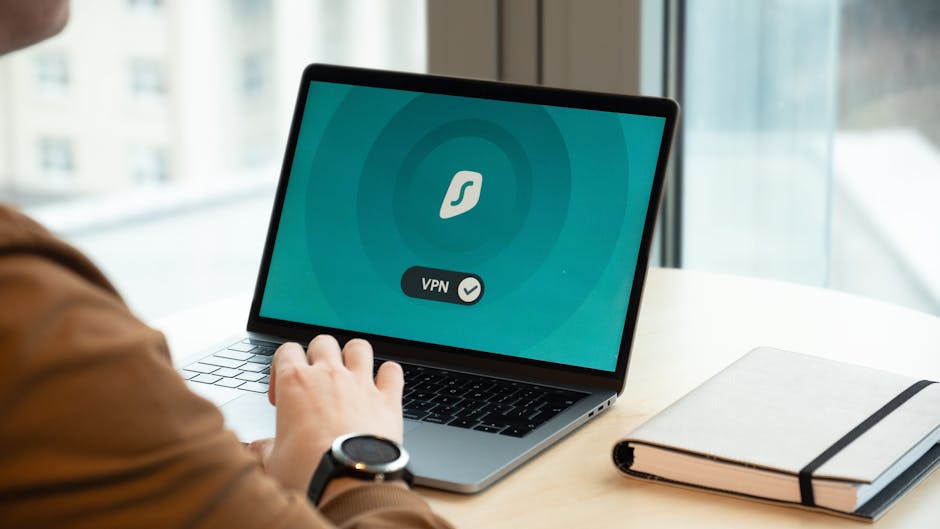
🎨 AI Generated: Testing Your VPN Connection
After setup, verify your VPN is working properly:
- IP address check: Visit whatismyipaddress.com before and after connecting
- DNS leak test: Use dnsleaktest.com to ensure DNS queries are encrypted
- WebRTC leak test: Check for WebRTC leaks at browserleaks.com
- Speed test: Run speedtest.net to check connection performance
Troubleshooting Common Issues
Slow Connection Speeds
- Try connecting to a closer server location
- Switch VPN protocols (WireGuard is typically fastest)
- Check if your router has sufficient processing power
- Disable unnecessary features like double VPN
Connection Drops
- Enable the kill switch feature
- Check firewall settings
- Verify port forwarding configuration
- Try a different VPN protocol
Cannot Access Local Devices
- Configure split tunneling to exclude local network
- Adjust VPN routing rules
- Check local network subnet configuration
Advanced Configuration Options
🎨 AI Generated: Advanced Configuration Options
Split Tunneling
Route only specific traffic through the VPN while allowing other traffic direct internet access. Useful for accessing local devices while maintaining VPN protection for sensitive activities.
Multiple VPN Servers
Set up different VPN profiles for different purposes (streaming, torrenting, maximum security) with optimized server locations.
VPN on Demand
Configure automatic VPN connection for specific apps or when connecting to untrusted networks.
Cost Considerations
Commercial VPN Service:
- Monthly: $10-13
- Annual: $40-100 (best value)
- Multi-year: $60-150 for 2-3 years
Self-Hosted VPN:
- Raspberry Pi 4: $35-55
- Power consumption: ~$2-5 annually
- Dynamic DNS (optional): Free to $25/year
- Initial setup time investment
Conclusion

🎨 AI Generated: Conclusion
Setting up a VPN at home is a crucial step toward protecting your online privacy. Whether you choose a commercial VPN service for ease of use and multiple server locations, or self-host for complete control and remote access to your home network, both approaches significantly enhance your digital security.
Start with the method that best fits your technical comfort level and requirements. Commercial VPNs offer simplicity and widespread server networks, while self-hosted solutions provide control and can be more cost-effective long-term.
Remember that a VPN is just one component of a comprehensive privacy strategy. Combine it with strong passwords, regular software updates, and mindful browsing habits for maximum protection.
\n
🚀 Stay Ahead of the Tech Curve
Get daily tech insights, honest reviews, and practical guides.
\n
\n
❓ Frequently Asked Questions
\n
What is a VPN and why do I need one at home?
A VPN (Virtual Private Network) encrypts your internet connection and masks your IP address, protecting your online privacy from ISPs, hackers, and other third parties. Setting up a VPN at home ensures that all your browsing activity and sensitive data remain secure and anonymous while using your home network.
\n
Do I need technical expertise to set up a home VPN?
While setting up a VPN does require some basic technical knowledge, most modern VPN services offer user-friendly guides and step-by-step instructions that make the process accessible to non-technical users. This complete guide simplifies the setup process with clear instructions and code examples you can follow.
\n
How much does it cost to set up a VPN at home?
VPN costs vary depending on your choice of provider, ranging from free services with limited features to premium subscriptions typically costing $5-15 per month. Most reputable paid VPN services offer better security, faster speeds, and more reliable privacy protection than free alternatives.
\n
Will a home VPN slow down my internet speed?
A VPN may cause some speed reduction since your traffic is being encrypted and routed through a VPN server, but quality providers minimize this impact. The speed decrease is usually minimal and hardly noticeable for everyday browsing, streaming, and work activities.
\n
\n
📚 You might also like




🔗 Share this article
✍️ Leave a Comment