
Git has become the standard version control system for software development, and mastering its core commands is essential for every developer. Whether you're working solo or collaborating with a team, these fundamental Git commands will streamline your workflow and help you manage code effectively.
📋 Table of Contents
Git has become the standard version control system for software development, and mastering its core commands is essential for every developer. Whether you're working solo or collaborating with a …
1. git init
The git init command initializes a new Git repository in your project directory. This is typically the first command you'll run when starting a new project.
code
git initThis creates a hidden .git folder that tracks all changes in your project.
2. git clone
🎨 AI Generated: 2. git clone
When you need to work with an existing repository, git clone creates a local copy of a remote repository.
code
git clone https://github.com/username/repository.gitThis downloads the entire project history and sets up the remote connection automatically.
3. git status
The git status command shows the current state of your working directory, including modified files, staged changes, and untracked files.
code
git statusThis is one of the most frequently used commands and should be your go-to for checking what's happening in your repository.
4. git add

🎨 AI Generated: 4. git add
Before committing changes, you need to stage them using git add. You can stage specific files or all changes at once.
code
git add filename.txt
git add .
git add -A
The dot (.) stages all changes in the current directory, while -A stages all changes in the entire repository.
5. git commit
The git commit command saves your staged changes to the repository history with a descriptive message.
code
git commit -m "Add user authentication feature"Always write clear, concise commit messages that describe what changes you made and why.
6. git push

🎨 AI Generated: 6. git push
After committing locally, use git push to upload your changes to a remote repository.
code
git push origin mainThis synchronizes your local commits with the remote repository, making them available to your team.
7. git pull
The git pull command fetches changes from the remote repository and merges them into your current branch.
code
git pull origin mainAlways pull before starting new work to ensure you're working with the latest code.
8. git branch
🎨 AI Generated: 8. git branch
Branching allows you to work on features independently. The git branch command lists, creates, or deletes branches.
code
git branch
git branch feature-login
git branch -d old-branch
Branches are essential for organizing work and implementing features without affecting the main codebase.
9. git checkout
Use git checkout to switch between branches or restore files.
code
git checkout feature-login
git checkout -b new-feature
The -b flag creates a new branch and switches to it in one command.
10. git merge
🎨 AI Generated: 10. git merge
When you're ready to integrate changes from one branch into another, use git merge.
code
git checkout main
git merge feature-login
This combines the histories of both branches, bringing your feature into the main branch.
11. git log
The git log command displays the commit history, helping you track changes over time.
code
git log
git log --oneline
git log --graph --oneline --all
Various flags provide different views of your project history.
12. git diff
🎨 AI Generated: 12. git diff
Use git diff to see what changes have been made before staging or committing.
code
git diff
git diff --staged
This helps you review your work and catch mistakes before committing.
13. git stash
When you need to switch contexts but aren't ready to commit, git stash temporarily saves your changes.
code
git stash
git stash pop
git stash list
This is invaluable when you need to quickly switch branches without losing work in progress.
14. git reset
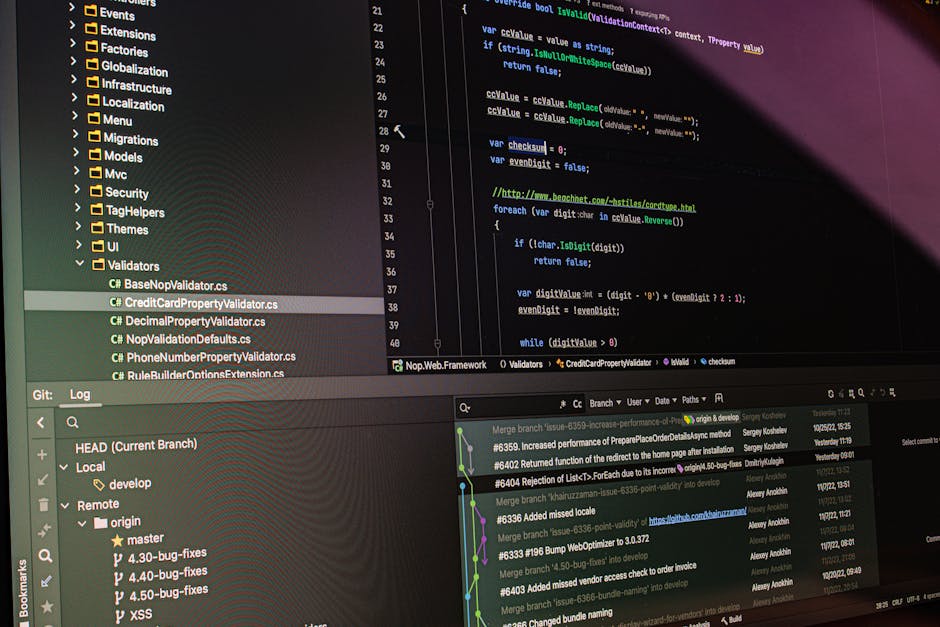
🎨 AI Generated: 14. git reset
The git reset command unstages files or undoes commits, depending on the flags used.
code
git reset filename.txt
git reset --soft HEAD~1
git reset --hard HEAD~1
Be careful with --hard as it permanently discards changes.
15. git remote
Manage remote repository connections with git remote.
code
git remote -v
git remote add origin https://github.com/username/repo.git
git remote remove origin
This command helps you view and manage where your code is pushed and pulled from.
Conclusion

🎨 AI Generated: Conclusion
Mastering these essential Git commands will significantly improve your development workflow and collaboration capabilities. Start by practicing the basics like init, add, commit, and push, then gradually incorporate more advanced commands like stash, reset, and rebase as you become comfortable.
Remember, Git is a powerful tool with many more commands and options beyond this list. The best way to learn is through regular practice and experimentation. Don't be afraid to try new commands in a test repository, and always keep backups of important work. Happy coding!
🚀 Stay Ahead of the Tech Curve
Get daily tech insights, honest reviews, and practical guides.
📚 You might also like




🔗 Share this article
✍️ Leave a Comment